- Check your router: is GEYRA right for me?
- Free or Guardian? What does GEYRA cost?
- Book Guardian
- Round-the-clock protection: defence even while the PC is off
- Alarm phone: sound, “Do not disturb” and full screen
- Paying with Link (Stripe)
- Enter the Guardian code (“I have already paid”)
- Receipt, invoice and bank statement “LINK.COM* GEYRA”
- Windows warning “Windows protected your PC”
- Install GEYRA
- Download GEYRA for free
- New PC: set up GEYRA again
- Remove / uninstall GEYRA
- First start: GEYRA ID and registration
- Recovery key: what is it for and where to keep it?
- First setup and first scan
- Understanding the overview
- Confirm and name devices
- Connect router
- Router password is not accepted
- Pair alarm phone
- Test the alarm
- Change or remove phone
- Block a device
- Allow a device / lift quarantine
- Protection levels OBSERVE, PROTECT, GUARDIAN
- Guardian rules and many alarms when switching on
- Quarantine for new devices
- Updates
- Troubleshooting
- Cancel the Guardian subscription
- Have your data deleted
- Nothing found – info@geyra.de
Your router
and GEYRA.
For blocking devices, PROTECT and GUARDIAN, GEYRA connects to your router. With Guardian the GEYRA server then also keeps an eye on your home network when your PC is off.
the network itself carries GEYRA.
Router check shows which routers GEYRA supports.
Open the router setup
During the first setup it starts directly at the step Connect router. Later, click Next step: connect router on the overview – or in the expert view click Protection & system on the left and then Set up router.
The router is found
GEYRA finds your router automatically. You don't need to enter an address. At the top it then shows, for example, “FRITZ!Box 7590”.
Enter the password
For a FRITZ!Box enter the FRITZ!Box password – not the Wi-Fi password! If you never changed it, it is on the sticker under the FRITZ!Box. Round-the-clock protection needs your own password. For other routers enter the user name and password of the router's admin page. For a Freebox confirm on the router's display instead. Click Connect.
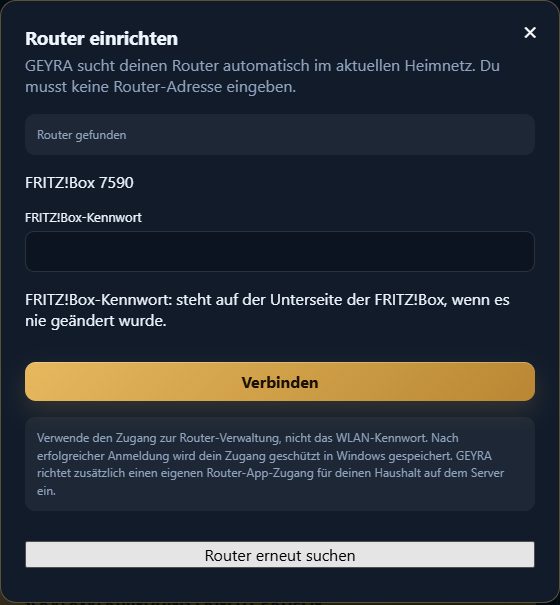
Router found: enter the FRITZ!Box password. Set up on the router
GEYRA shows you what will be created on the router – for a FRITZ!Box its own login “GEYRA Router-Auge” (GEYRA router eye). Nothing is changed until you click SET UP ON ROUTER. This can take up to a minute.
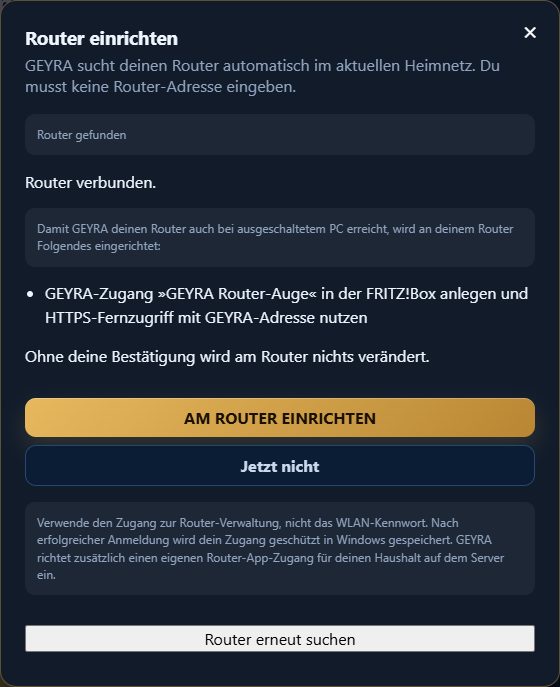
Only after your confirmation is anything set up on the router. Connected
Under Protection & system the router platform now shows CONNECTED, and on the overview the router eye shows a ✓.
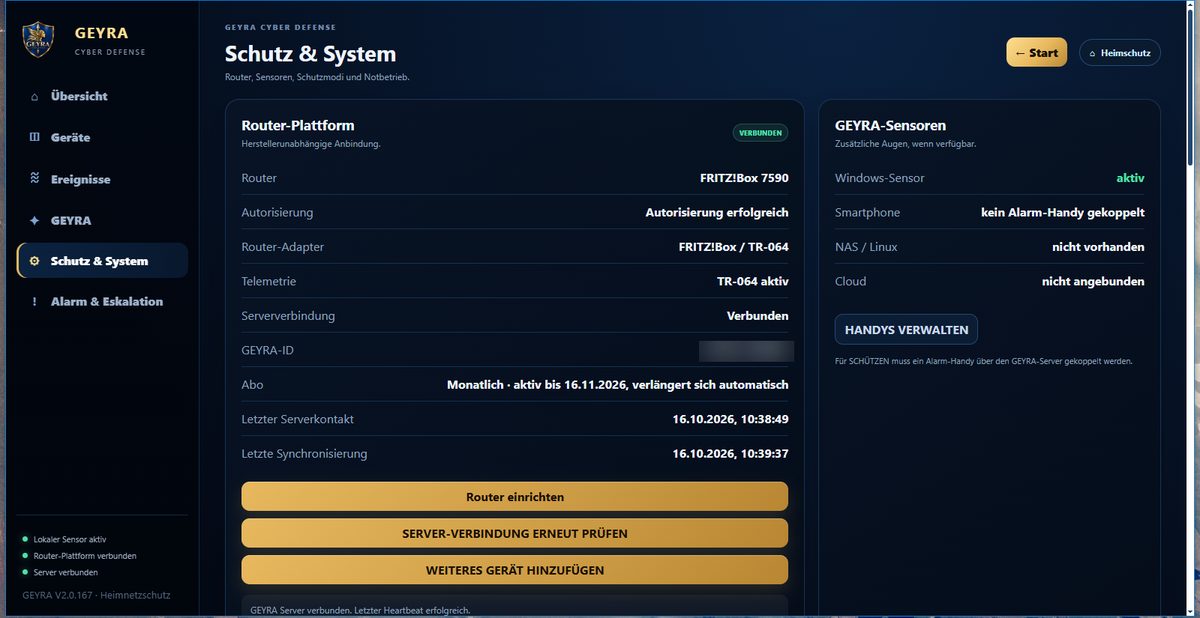
Router platform: connected.
If it doesn't work
“The password is wrong.”
This means the password of the router's admin page, for a FRITZ!Box the FRITZ!Box password – not the Wi-Fi password. If you can't remember it, open fritz.box in the browser and click “Forgot password?”.
“The connection via the GEYRA server does not work yet.”
Your router is connected to the PC – everything important works. Only the connection for the time when your PC is off is still being set up. GEYRA keeps trying by itself. You can carry on as normal.
GEYRA can't find my router.
Your PC must be connected to your router's home network – not to a guest Wi-Fi. Then click Search for router again. If it still doesn't work, GEYRA offers to send us a report (without passwords). Click Send report – we will get in touch.
My router is “being added”.
Then GEYRA already detects unknown devices and alerts you. Only blocking devices will come later with an update. With SEND ROUTER CAPTURE you help us add your router faster.