
- Check your router: is GEYRA right for me?
- Free or Guardian? What does GEYRA cost?
- Book Guardian
- Round-the-clock protection: defence even while the PC is off
- Alarm phone: sound, “Do not disturb” and full screen
- Paying with Link (Stripe)
- Enter the Guardian code (“I have already paid”)
- Receipt, invoice and bank statement “LINK.COM* GEYRA”
- Windows warning “Windows protected your PC”
- Install GEYRA
- Download GEYRA for free
- New PC: set up GEYRA again
- Remove / uninstall GEYRA
- First start: GEYRA ID and registration
- Recovery key: what is it for and where to keep it?
- First setup and first scan
- Understanding the overview
- Confirm and name devices
- Connect router
- Router password is not accepted
- Pair alarm phone
- Test the alarm
- Change or remove phone
- Block a device
- Allow a device / lift quarantine
- Protection levels OBSERVE, PROTECT, GUARDIAN
- Guardian rules and many alarms when switching on
- Quarantine for new devices
- Updates
- Troubleshooting
- Cancel the Guardian subscription
- Have your data deleted
- Nothing found – info@geyra.de
Your smartphone
as alarm phone.
How to pair your smartphone with GEYRA. It takes about five minutes.
the network itself carries GEYRA.
What you need
- ✓ an Android smartphone
- ✓ the smartphone is connected to your Wi-Fi at home (only for the setup)
- ✓ GEYRA is installed and open on your PC
Pair
You will switch between the PC and the smartphone. Place them next to each other.
On the PC: start the setup
On the overview click the Alarm phone tile or Next step: pair alarm phone. The window Set up alarm phone opens.
On the PC: choose the phone (step 1 of 3)
GEYRA shows the phones on your Wi-Fi. Choose your smartphone from the list and click USE THIS PHONE.
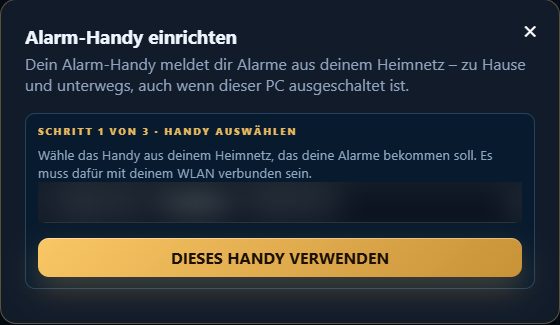
Step 1: choose phone (device name made unreadable in the picture). On the smartphone: install the app (step 2 of 3)
Open the Google Play Store, search for “GEYRA Cyber Defense” and tap Install.
On the smartphone: open the app
Open the GEYRA app. Allow notifications with Allow.
On the PC: show the code (step 3 of 3)
Click SHOW PAIRING CODE. GEYRA shows a code like ABCDE-FGHJK. It is valid for 10 minutes and only once.
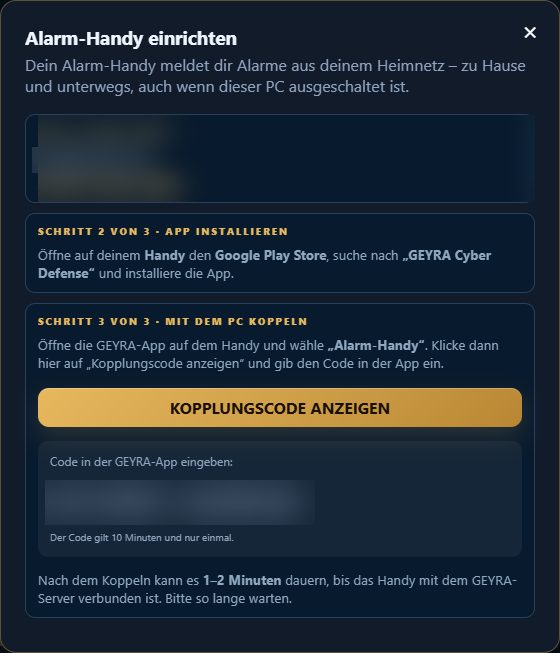
Step 3: pairing code (made unreadable in the picture). On the smartphone: enter the code
Type the code into the app and confirm. If Android then asks whether GEYRA may run in the background, tap Allow.
Wait a moment
It takes 1–2 minutes until the phone is connected to the GEYRA server. Then “✓ Alarm phone is ready” appears, and the overview on the PC shows your phone as “reachable”.
Test the alarm
Open the alarm section
In the expert view click Alarms on the left.
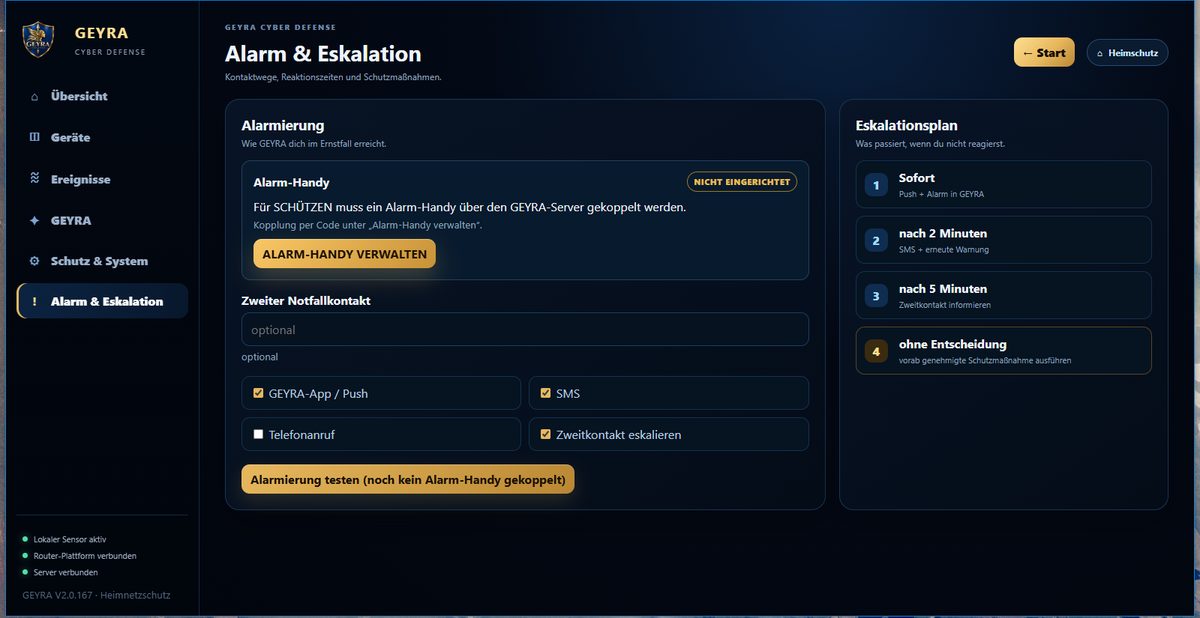
Alarms: alarm phone, contact channels and escalation plan. Trigger a test
Click Test alert. After a few seconds the test alarm arrives on your smartphone. If the button says “no alarm phone paired yet”, pair it first as described above.
Sound and full screen
The sound follows your phone
If your phone is set to silent, the alarm stays quiet. On vibrate it vibrates. On normal it rings once.
“Do not disturb”
If “Do not disturb” is on, the phone stays quiet. You then find the alarm in your notifications.
Full screen when the phone is locked
If your phone is locked, GEYRA shows the alarm large on the whole screen. That way you do not miss it.
When an alarm arrives
View the alarm
Your smartphone shows a notification from GEYRA, for example “Neues Gerät erkannt: …” (new device detected). Tap it.
Check
Do you know the device – a new phone in the family or a visitor? Then tap Kenne ich (I know it). If you want to look at it later, tap Später prüfen (check later). If you don't know it, block it: Block a device.
GEYRA has disconnected a device
If GEYRA has disconnected a device from the internet by itself (quarantine or automatic defence), you always get an alarm. In it you choose Release or Keep blocked.
Change or remove phone
Remove the old phone
On the PC under Protection & system click MANAGE PHONES. Next to the old phone click REMOVE.
Pair the new phone
Set up the new phone as described above under Pair.