- Check your router: is GEYRA right for me?
- Free or Guardian? What does GEYRA cost?
- Book Guardian
- Round-the-clock protection: defence even while the PC is off
- Alarm phone: sound, “Do not disturb” and full screen
- Paying with Link (Stripe)
- Enter the Guardian code (“I have already paid”)
- Receipt, invoice and bank statement “LINK.COM* GEYRA”
- Windows warning “Windows protected your PC”
- Install GEYRA
- Download GEYRA for free
- New PC: set up GEYRA again
- Remove / uninstall GEYRA
- First start: GEYRA ID and registration
- Recovery key: what is it for and where to keep it?
- First setup and first scan
- Understanding the overview
- Confirm and name devices
- Connect router
- Router password is not accepted
- Pair alarm phone
- Test the alarm
- Change or remove phone
- Block a device
- Allow a device / lift quarantine
- Protection levels OBSERVE, PROTECT, GUARDIAN
- Guardian rules and many alarms when switching on
- Quarantine for new devices
- Updates
- Troubleshooting
- Cancel the Guardian subscription
- Have your data deleted
- Nothing found – info@geyra.de
GEYRA on your PC.
Installed in five minutes.
How to install GEYRA – even if Windows shows a warning.
the network itself carries GEYRA.
What you need
- ✓ a PC with Windows 10 or Windows 11
- ✓ the PC is connected to your home network (Wi-Fi or cable, not guest Wi-Fi)
- ✓ the installation file – download for free, no purchase and no email needed
Install
Download
Under Download click Download for free. The installation file GEYRA_Cyber_Defense_V2_Setup….exe lands in the Downloads folder.
Start
Open the Downloads folder and double-click the GEYRA installation file.
Windows warning: “Windows protected your PC”
Windows often shows this blue window for new programs. This is normal and not an error. Click the small text More info.
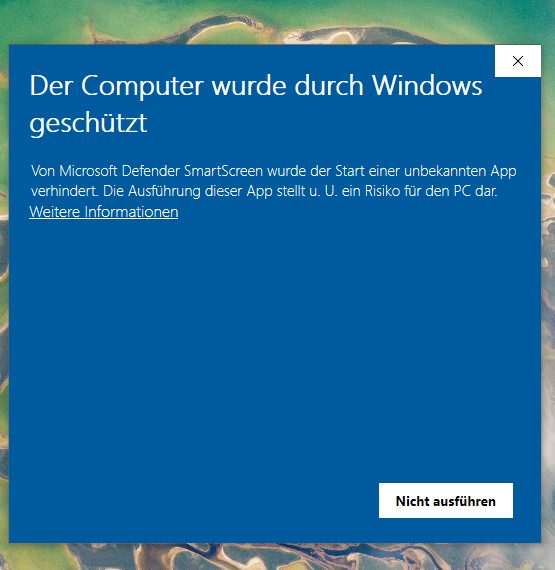
Click “More info”. “Run anyway”
Now the button Run anyway appears at the bottom. Click it. Under “App” it must say GEYRA_Cyber_Defense_V2_Setup.
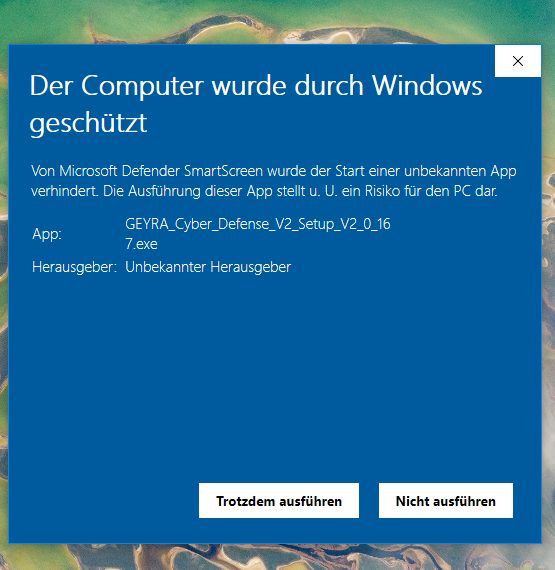
Click “Run anyway”. Allow changes
If Windows asks “Do you want to allow this app to make changes to your device?”, click Yes.
Done
The installation runs by itself. A message confirms it – click OK. GEYRA then starts and registers your household automatically. From now on there is a GEYRA icon on your desktop and in the Start menu.
New PC – set up GEYRA again
Your devices, names and alarm phone are kept. You need your GEYRA ID and your recovery key – or another device on which GEYRA is already running.
Download GEYRA
Download GEYRA for free under Download.
Install
As described above under Install.
Is GEYRA still running on another device?
Then choose GEYRA already runs at my home on the new PC and enter the device code shown on the old PC under Protection & system → ADD ANOTHER DEVICE.
No GEYRA device left?
Choose Restore and enter your GEYRA ID (for example GEYRA-000123) and your recovery key (GEYRA-RK-…). GEYRA then shows you a new key – keep it safe again, the old one is no longer valid.
New version
You don't need to do anything: GEYRA fetches new versions automatically and installs them. You do not need the installation file for this. Your devices, device names, alarm phone and settings are kept. More under Updates.
Remove GEYRA
Open Windows Settings
Press the Windows key and I at the same time. Click Apps and then Installed apps.
Uninstall GEYRA
Find GEYRA Cyber Defense, click the three dots next to it and then Uninstall.